 Unbit
UnbitHow to open a BitLocker drive on a Mac
A drive encrypted with BitLocker can be plugged into a Mac, but macOS has no built-in BitLocker support, so Finder can’t open it. The short version: install a BitLocker reader such as Unbit, plug in the drive, enter its password and open it read-only in Finder. This guide walks through each step.
What BitLocker is
BitLocker is Microsoft’s drive encryption for Windows. It scrambles everything on a drive so that it can’t be read without the password (or a recovery key). On external drives Windows calls it BitLocker To Go: you switch it on in Windows, choose a password, and Windows asks you to save a 48-digit recovery key.
A drive protected this way shows a padlock icon in Windows File Explorer.
Why a Mac can’t open it on its own
macOS has its own encryption, FileVault, and it reads common formats such as exFAT, FAT32 and NTFS. It doesn’t understand BitLocker’s encryption, though, so the drive can’t be mounted. Depending on your macOS version you may see a message that the disk isn’t readable by this computer, or the drive may not show up in Finder at all.
Never choose Initialize or Erase in that message – it would wipe everything on the drive.
You have two options: use Windows (a PC or a Windows virtual machine), or use an app that reads BitLocker on the Mac. Unbit is a free menu bar app that does the second: it decrypts the drive on your Mac and attaches it to macOS as read-only, so it appears in Finder like any other drive. If you’re weighing other tools, see the alternatives overview.
Open the drive with Unbit, step by step
- Download Unbit and drag it into your Applications folder. It needs macOS 13 or later and runs on both Apple silicon and Intel Macs.
- Open Unbit. It lives in the menu bar, not in the Dock. The first time, a short guide shows where to switch on Full Disk Access in System Settings, which Unbit needs to read the encrypted drive.
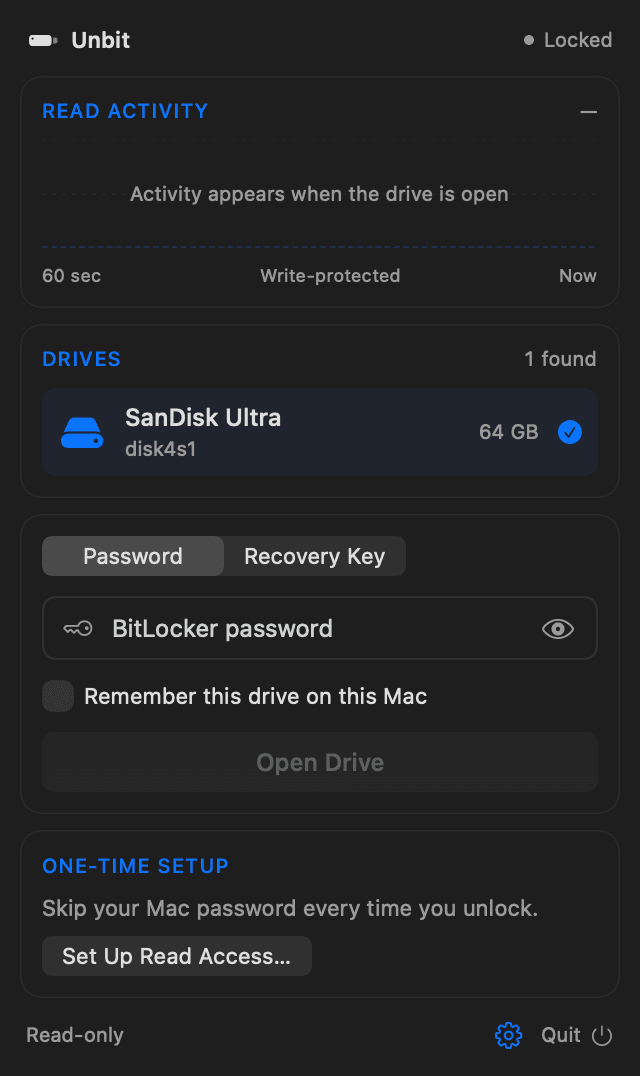
- Plug in the drive. Unbit detects it automatically and lists it under Drives. If you have several external drives, select the BitLocker one. If the drive has more than one partition, choose the encrypted partition.
- Enter the BitLocker password – the one chosen when BitLocker was turned on for the drive – and choose Open Drive. macOS may ask for your Mac password to approve read access to the drive; Set Up Read Access in Unbit does this once, so you aren’t asked every time.
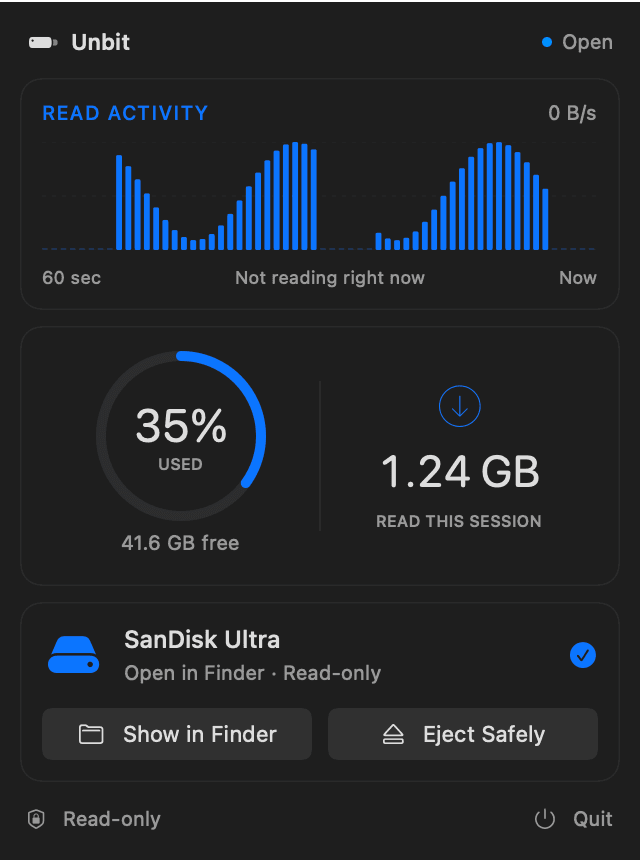
- When Unbit says the drive is open, choose Show in Finder. The drive is mounted read-only, so you can browse it, open files and copy them to your Mac.
- When you’re done, choose Eject Safely in Unbit before unplugging the drive.
Tick Remember this drive on this Mac if you want Unbit to store the password, encrypted, in your macOS keychain so the drive opens next time without typing it. It’s optional, and you can forget the saved password at any time.
Read-only: copy files off, don’t edit in place
Unbit never writes to the drive. You can open files and copy them to your Mac, but you can’t save changes back to the drive, delete files or add new ones. To edit a file, copy it to your Mac first. To change what’s stored on the drive, use Windows.
Wondering whether that’s a good thing? Read Is BitLocker on Mac safe?.
Troubleshooting
- The drive doesn’t appear in Unbit. Unplug it and plug it in again, then refresh the drive list (⌘R). Make sure it’s an external drive – internal disks aren’t supported – and try another cable or port.
- “Wrong password”. Check for typos and Caps Lock; spaces count. If the drive also has a recovery key, you can enter it on the Recovery Key tab instead (48 digits, in 8 groups of 6).
- “macOS denied access to the drive”. Unbit needs Full Disk Access. Open System Settings › Privacy & Security › Full Disk Access, switch Unbit on and try again.
- The drive is being encrypted or decrypted by Windows. Let Windows finish first, then try again.
- Unlocked, but macOS doesn’t recognize the file system. After unlocking, the file system inside should be exFAT, FAT32 or NTFS. If it isn’t, check the drive on a Windows PC.
- “The BitLocker information on this drive is damaged”. Check the drive on a Windows PC, for example with chkdsk or repair-bde, and try again.
- The drive is in use when you eject it. Close all files and windows from the drive and try again.
Drives encrypted with an older BitLocker version than the one in Windows 7, or with a method Unbit doesn’t support, can’t be opened. Unbit tells you so; use a Windows PC for those.
If you don’t have the password
BitLocker can’t be bypassed – that is the point of encryption. Look for the 48-digit recovery key Windows asked you to save when BitLocker was turned on. It may be in the Microsoft account used on the PC that encrypted the drive, in a file or printout you saved, or with your IT administrator if it’s a work drive.
If you have the recovery key, enter it on Unbit’s Recovery Key tab instead of the password.
Frequently asked questions
Can a Mac open a BitLocker drive without extra software?
No. macOS has no built-in BitLocker support. You need a reader app such as Unbit, or a Windows PC or virtual machine.
Is Unbit free?
Yes, Unbit is free to download. It’s a menu bar app for macOS 13 or later, on Apple silicon and Intel Macs.
Can I copy files from a BitLocker drive to my Mac?
Yes. Once the drive is open in Finder you can browse it and copy files to your Mac the usual way.
Can I edit or delete files on the drive from my Mac?
Not with Unbit, which is read-only by design. Copy the files to your Mac to work on them, or use Windows to change the drive itself.
Do I need a Windows PC?
No. Everything happens on your Mac. Your password and files are never sent anywhere.
Does this work for USB sticks, SSDs and hard drives?
Yes, for external drives of any of those kinds. See Open a BitLocker SSD, HDD or USB stick on Mac for the details.